
Best Free Fire Sensitivity Settings for Headshots (2026 Deep Dive)
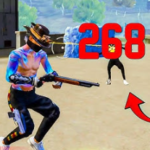
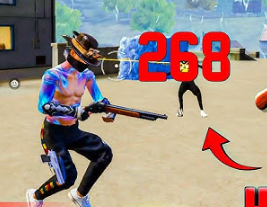
One of the most common frustrations for new Free Fire players is watching YouTube highlights of Ruok or White444 and wondering, “Why does my aim get stuck on the chest while theirs locks instantly onto the head?”
It’s easy to blame skill, but 60% of the problem is usually your sensitivity settings. The default settings Garena gives you are designed for casual play, not for the fast-paced “Drag Headshot” meta we see in Ranked matches today.
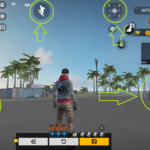
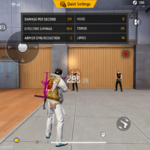
In this massive guide, we aren’t just giving you a screenshot of settings. We are diving into the science of touch response, DPI, the powder trick, and how to customize your HUD for maximum accuracy. Whether you play on a low-end 3GB RAM device or a high-end ROG Phone, this guide will fix your aim.
Part 1: The “General” Sensitivity Myth
Many players think they need “General” sensitivity at 50 or 70 to be accurate. This is wrong for mobile gaming. Unlike PC games like CS:GO where low sensitivity equals precision, in Free Fire, High Sensitivity equals Headshots.
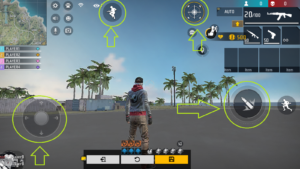
When you swipe your thumb up to drag the fire button, you have limited screen space. If your sensitivity is low, you have to drag your thumb all the way to the top edge of the phone to move the crosshair slightly up. By that time, you’re dead.
The Golden Rule: You want your crosshair to reach the enemy’s head with a short, quick flick, not a long drag.
Part 2: Sensitivity Settings by Device Tier
Not all screens are created equal. A Samsung A-series screen has a different touch sampling rate than an iPhone 13. Here is the breakdown:
For Low-End Devices (2GB, 3GB, 4GB RAM)
Examples: Samsung J Series, Older Redmi, Realme C series.
These phones often have “heavy” touch response. You need to maximize everything to compensate for the hardware lag.
General: 100 (Do not lower this!)
Red Dot: 95 – 100
2x Scope: 90 – 95
4x Scope: 90 – 95
Sniper Scope: 50 (Keep this lower for control)
Free Look: 50
For Mid-Range Devices (6GB RAM)
Examples: Redmi Note 10/11/12 Pro, Realme Narzo, POCO X series.
General: 90 – 95
Red Dot: 85 – 90
2x Scope: 85
4x Scope: 80
Sniper Scope: 40 – 45
For High-End / Gaming Phones (8GB+ RAM, 90Hz/120Hz)
Examples: iPhone 11+, ROG Phone, OnePlus, Black Shark.
These screens are slippery and fast. If you put General to 100, your screen will shake (jitter) and bullets will fly over the head.
General: 80 – 85 (Test carefully)
Red Dot: 75 – 80
2x Scope: 75
4x Scope: 70
Sniper Scope: 30 (Precision is key)
Part 3: The “DPI” Secret (Smallest Width)
You’ve heard pro players talk about DPI. What is it?
DPI (Dots Per Inch) or “Smallest Width” in Android Developer Options controls the resolution scaling of your screen. Increasing this number makes everything on your screen smaller, but it makes your touch sensitivity drastically faster—faster than the game settings allow.
How to change it safely:
Go to Settings > About Phone > Tap “Build Number” 7 times.
Go to System > Developer Options.
Find “Smallest Width” or “Minimum Width”.
Memorize your default number! (Usually 360 or 411).
Recommended Safe Increases:
If default is 360 → Change to 420 or 450.
If default is 411 → Change to 500.
WARNING: Do not set it above 600. High DPI generates heat and can cause your phone to bootloop (crash) or reset. We are not responsible for damaged devices. Stay within +100 of your default.
Part 4: Physical Friction – The Powder Trick
Have you ever played when your hands are sweaty? Your thumb gets stuck on the glass. This ruins drag shots.
The Solution:
Thumb Sleeves: These are cheap silver-fiber sleeves you wear on your thumbs. They reduce friction to zero. They are reusable and washable. Highly recommended for rank pushers.
Baby Powder: The old school trick. Put a tiny bit of powder on your screen. It makes the glass super smooth. (Caution: Don’t get powder in your charging port!).
Part 5: Troubleshooting Your Aim
Use this diagnostic list to fix your specific problem during a match:
Scenario A: Bullets fly OVER the enemy’s head (Sky Shots)
The Cause: Your sensitivity is too high, or you are dragging too forcefully.
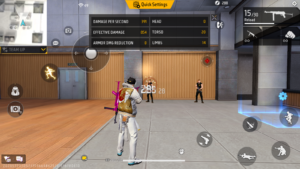
The Fix: Reduce “General” sensitivity by 3 points. Try again. If it still happens, reduce “Red Dot” by 5 points.
Scenario B: Aim locks on the CHEST (Body Shots)
The Cause: Your sensitivity is too low, or you are too close to the enemy.
The Fix: Increase “General” to 100. If it’s already 100, increase your DPI by +20. Also, try to engage enemies from slightly further away.
Scenario C: Scope shakes uncontrollably
The Cause: Gyroscope might be on, or Scope Sens is too high.
The Fix: Turn off “Always On” Gyroscope if you aren’t used to it. Reduce 4x Scope sensitivity significantly.
Part 6: The “Rotation Drag” Technique
Having the settings is only 50% of the work. You need to move your thumb correctly. Do not just drag straight up.
The “J” Drag:
Most enemies don’t stand still. They run left or right. If an enemy is running to your right:
Do not drag straight up.
Drag your fire button down slightly, then curve it up-right towards the enemy’s head.
The shape your thumb makes looks like the letter “J” or a fish hook.
This technique “hooks” onto the hitbox and pulls it to the head. It takes practice, but it is the secret behind “One Tap” headshots with the M1887 and Desert Eagle.
Conclusion
There is no “magic number” that works for everyone. Start with the values in this guide, head to the Training Grounds, and shoot the moving dummy for 10 minutes. Tweak your “General” setting by +/- 1 until it feels perfect. Good luck, and see you on the battlefield!