
You can have the best movement in the world, but if your phone freezes for 0.5 seconds during a fight, you are dead. Lag is the biggest enemy of Free Fire players, especially on 2GB, 3GB, or 4GB RAM devices.
Many players make the mistake of running “Ultra” graphics because it looks pretty. In Ranked, we don’t care about pretty. We care about Frames Per Second (FPS).
1. FPS > Quality (The Golden Rule)
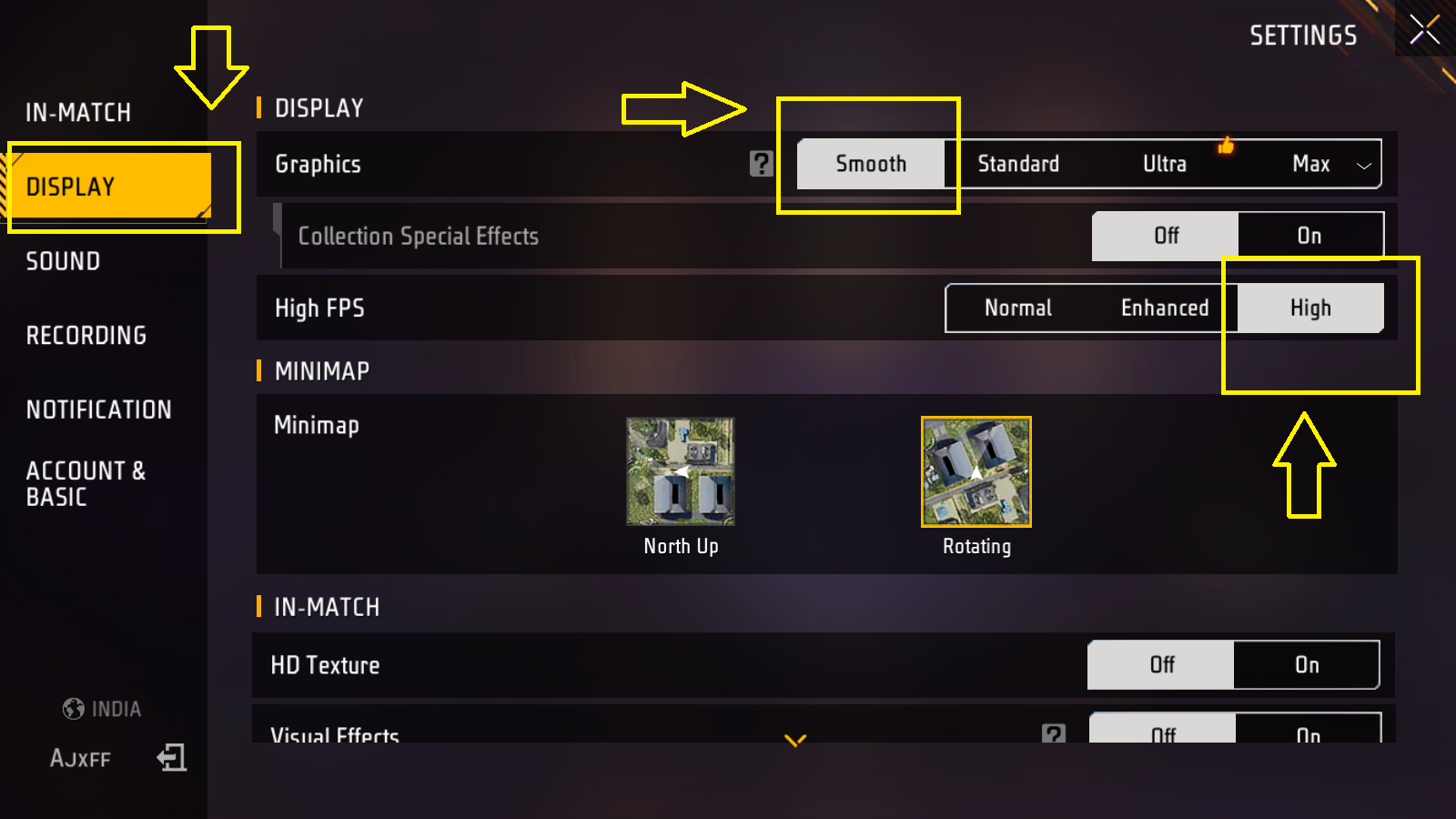
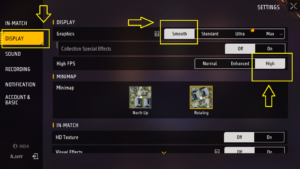
Go to your Graphics Settings right now.
- Graphics: Set this to Smooth or Standard. Even if you have an iPhone 13, many pros play on Smooth. Why? Because it removes grass textures and shadows, making it easier to spot enemies.
- High FPS: Set this to HIGH. This is non-negotiable.
Why High FPS? Standard runs at 30 FPS. High runs at 60 FPS. With 60 FPS, your “Drag Headshots” register much smoother. The game reads your touch input faster. Playing on Normal FPS puts you at a competitive disadvantage.
2. Shadows and Filters
Shadows: Turn them OFF. Shadows require your phone’s GPU to calculate lighting for every object. In a battle royale map with thousands of trees, this kills performance. Plus, shadows can sometimes hide enemies lying in the grass.
Filter: Use “Classic” or “Bright”. Do not use “Vivid” or “Ocean” on low-end phones as they add post-processing color saturation that heats up the device.
3. The “Download Center” Trick
Free Fire has huge file sizes now because of all the skins and costumes (Costume Packs). These take up storage and RAM.
If your phone is lagging:
- Go to the Download Center (Top middle of lobby).
- Delete the “Costume Collection” pack.
- Only download the skin you are wearing.
This prevents your phone from having to load the high-texture skins of every enemy you meet. You will see them as “defaults” (Adam/Eve), but your game will run much faster.
4. Developer Options (For Android Users)
If you really need to squeeze out performance:
- Go to Phone Settings > Developer Options.
- Find “Background Process Limit”.
- Set it to “At most 1 process” or “No background processes”.
This stops WhatsApp, Instagram, or Facebook from eating your RAM while you are playing. Just remember to set it back to “Standard Limit” when you finish playing.
5. Clear Cache Routine
Before every ranked session (not every match, but every session), go to your phone settings -> Apps -> Free Fire -> Storage -> Clear Cache. (Do NOT click Clear Data, or you lose your HUD/Updates). This removes temporary junk files that build up.
Conclusion
Do not be ashamed of playing on “Smooth” graphics. I know Grandmaster players with ROG Phones who still play on Smooth because they want maximum visibility and zero lag. Performance wins games, not graphics.