
Mobile players hate them, but PC players dominate them. Playing Free Fire on an emulator (PC) gives you the precision of a mouse and keyboard. You can perform movements (like the 360-degree Gloo Wall) instantly that take mobile players months to master.
However, Free Fire is not optimized for PC natively. You need an emulator like BlueStacks 5 or MSI App Player. And out of the box, the settings are terrible. The mouse sticks, the game lags, and the sensitivity feels weird. This guide will fix your emulator setup for peak performance.
1. BlueStacks 5 Engine Settings
Before launching the game, open BlueStacks Settings (Gear Icon > Performance).
- CPU Allocation: Set to “High (4 Cores)” if you have a decent PC. Free Fire is CPU heavy.
- Memory Allocation: “High (4GB)”.
- Performance Mode: “High Performance”.
- Frame Rate: Check “Enable High Frame Rate” and slide it to 90 or 240.
- VSync: Turn OFF. It causes input lag.
2. Enabling 90 FPS / 120 FPS
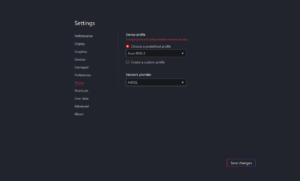
To get true 90+ FPS in Free Fire, you need a specific device profile.
- Go to Settings > Phone.
- Choose Profile: “ASUS ROG 2”. This is the only profile that officially unlocks high frame rates in the Free Fire engine.
- Save changes and restart BlueStacks.
- In Free Fire Game Settings, set Graphics to “Smooth” and High FPS to “High” or “Max”.
3. The Secret “X and Y” Sensitivity
This is where PC players get aimbot-like accuracy. On a phone, vertical and horizontal swipes are the same. On a mouse, they are different.
Open the Keymapping Editor (Ctrl + Shift + A) -> Advanced Settings on the “Aim, Pan and Shoot” script.
- Mouse Sensitivity X (Horizontal): 1.0 – 1.5. (You want to turn comfortably).
- Mouse Sensitivity Y (Vertical): 2.0 – 3.0. (Make this HIGHER than X).
Why? A higher Y-axis sensitivity means a tiny upward movement of your mouse results in a huge drag up in the game. This makes landing Drag Headshots effortless. You barely move your hand, and the crosshair snaps to the head.
4. The “Mouse Stutter” Fix (Tweaks)
A common bug in emulators is the mouse getting stuck or stuttering.
The Fix: Change the “Tweaks” value in the aim settings. Right-click the Aim icon in keymapping.
- Look for “Tweaks”.
- Set it to 16450 (Standard best) or 21058 (For smoother 360s).
- This changes how the emulator interprets raw mouse data, fixing the stutter.
5. Keymapping Tips
- Gloo Wall: Bind to “Q” or “E” or a side mouse button. It must be accessible instantly.
- Macro (Optional): BlueStacks allows macros. You can create a macro that presses “Crouch + Gloo Wall + Fire” with one key. (Note: Use at your own risk; Garena frowns upon macros in tournaments, but they are generally safe in ranked matchmaking on emulators).
Conclusion
Playing on PC feels unfair because it is. Once you master the X/Y sensitivity ratio, you will out-aim almost any mobile player. Just remember: Garena puts emulator players in separate matchmaking pools often, so you will face other PC sweats. Be ready.
Frequently Asked Questions (FAQ)
Q: Will I get banned for using BlueStacks?
A: No. BlueStacks is a legitimate emulator. However, do NOT use “Bypass” tools to match with mobile players. That leads to bans.
Gcfthbddb6zyZanHf
Duplicate comment detected; it looks as though you’ve already said that!
Hbshbsbsuzbsbhs
Ghjncfvh